What is the Snapshots New Design System (UI)?
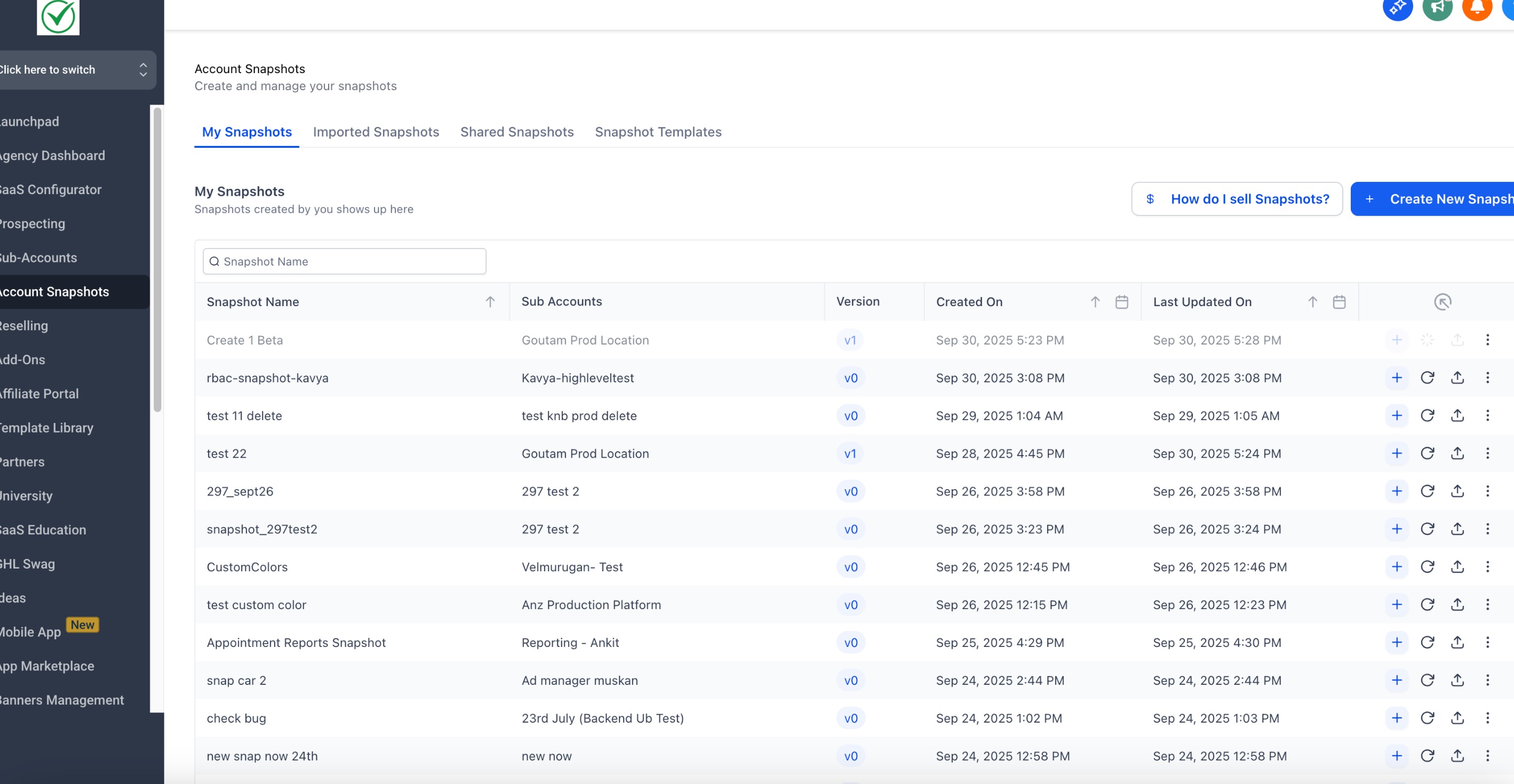
The New Design System is the platform's next-generation interface framework, now applied across every Snapshots screen. By migrating to this UI, Snapshots gain a consistent look and feel, improved performance, and new filtering, sorting, and search utilities that help you locate and manage large volumes of snapshot data more efficiently.
Key Benefits of the New Design System for Snapshots
The upgrade delivers tangible workflow improvements:
- Consistent user experience—identical styling, icons, and navigation across all snapshot tabs.
- Faster discovery—instant search, column sorting, and multi-select filters trim time spent hunting for the right snapshot.
- Higher data confidence—calendar filters surface snapshots created, imported, or shared within a precise date range for quick audits.
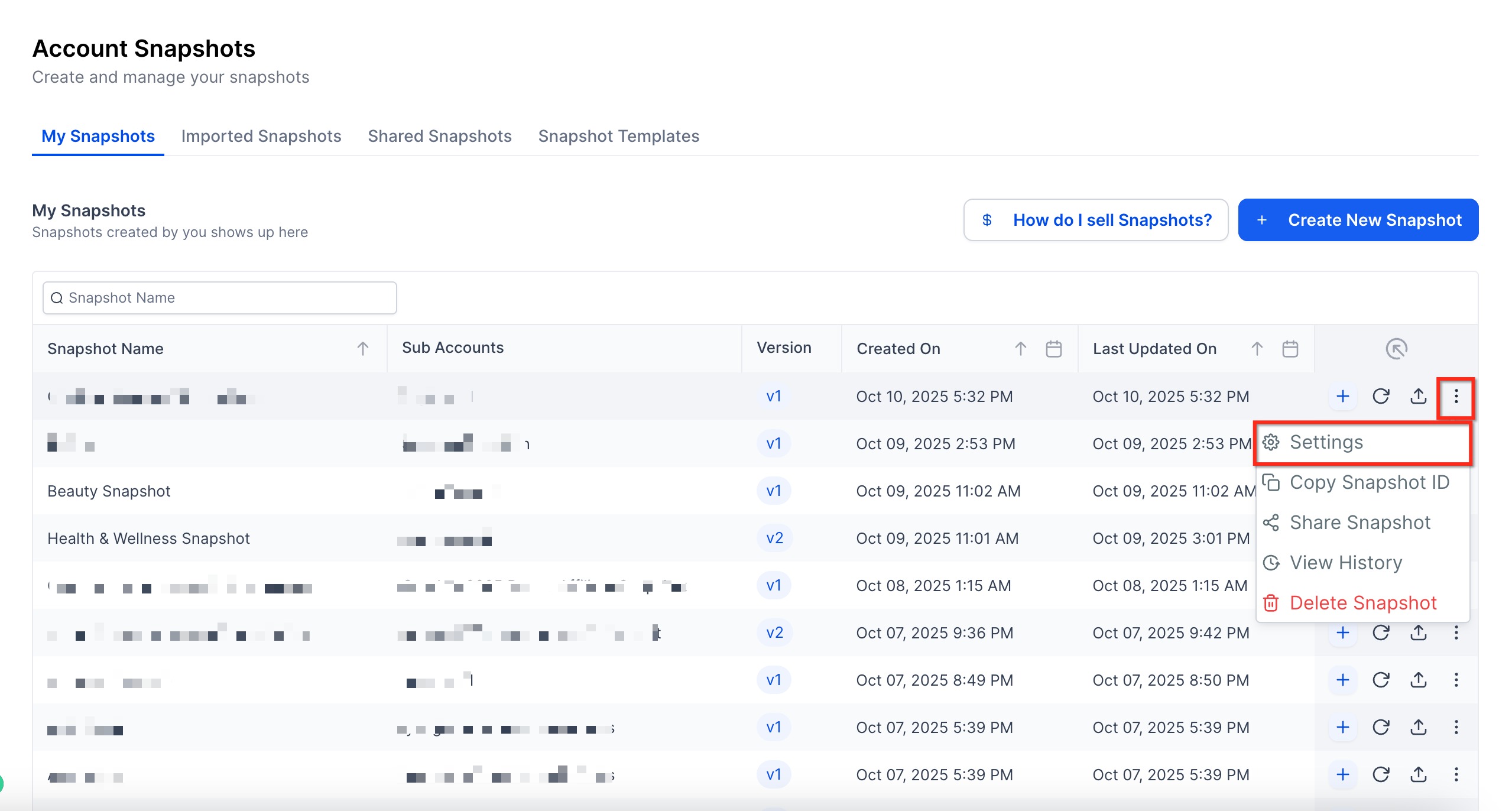
- Smoother task execution—clearly grouped actions (Create, Refresh, Push, History, Settings) minimize clicks and confusion.
- Future-proof foundation—the New Design System will continue rolling out, so learning it here prepares you for upcoming UI updates elsewhere.
Core Snapshot Actions in the New UI
The primary workflow buttons now live in a single, fixed-position action bar, reducing scroll:
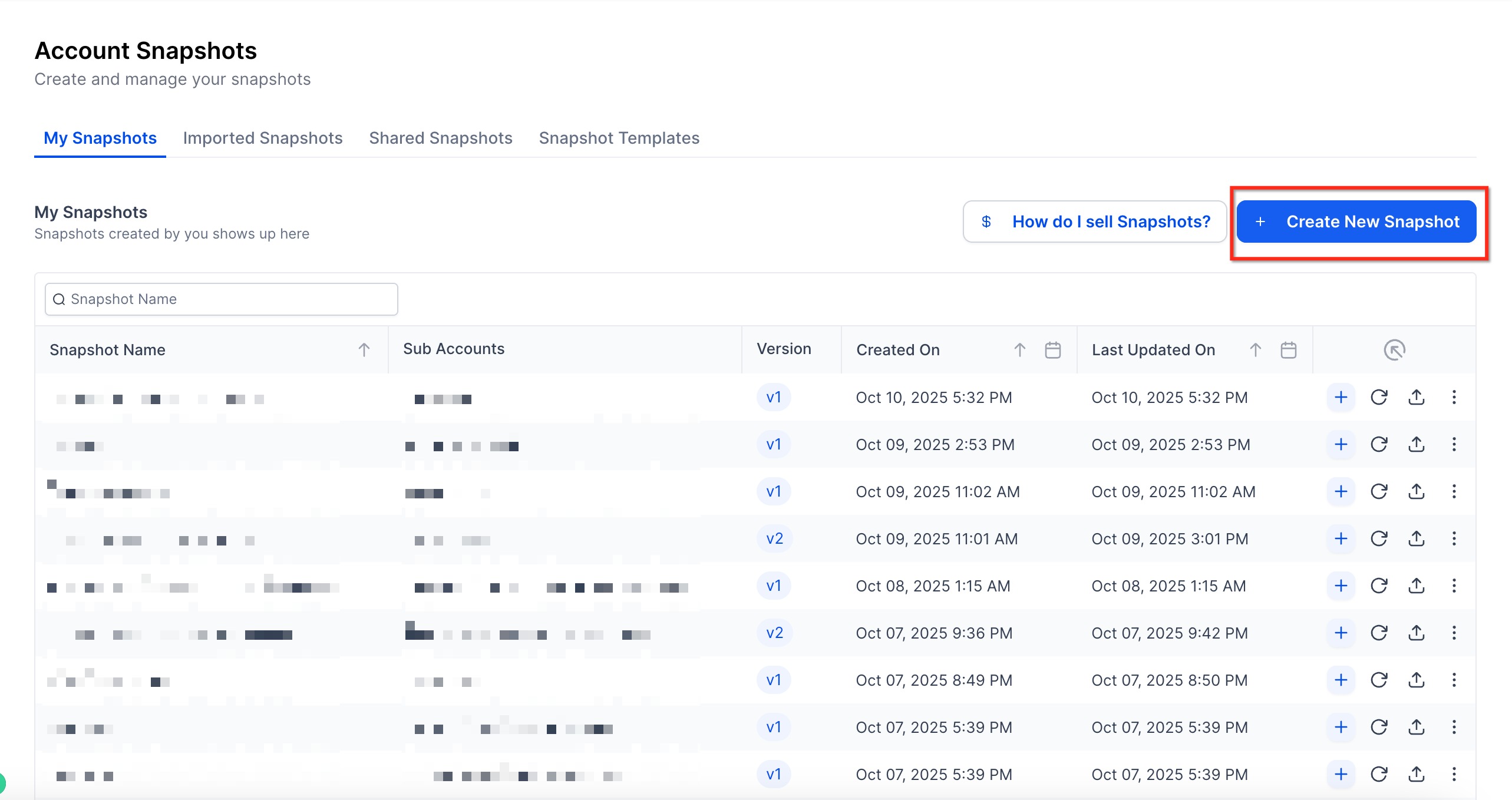
- Create Snapshot – generate a new template from any account.
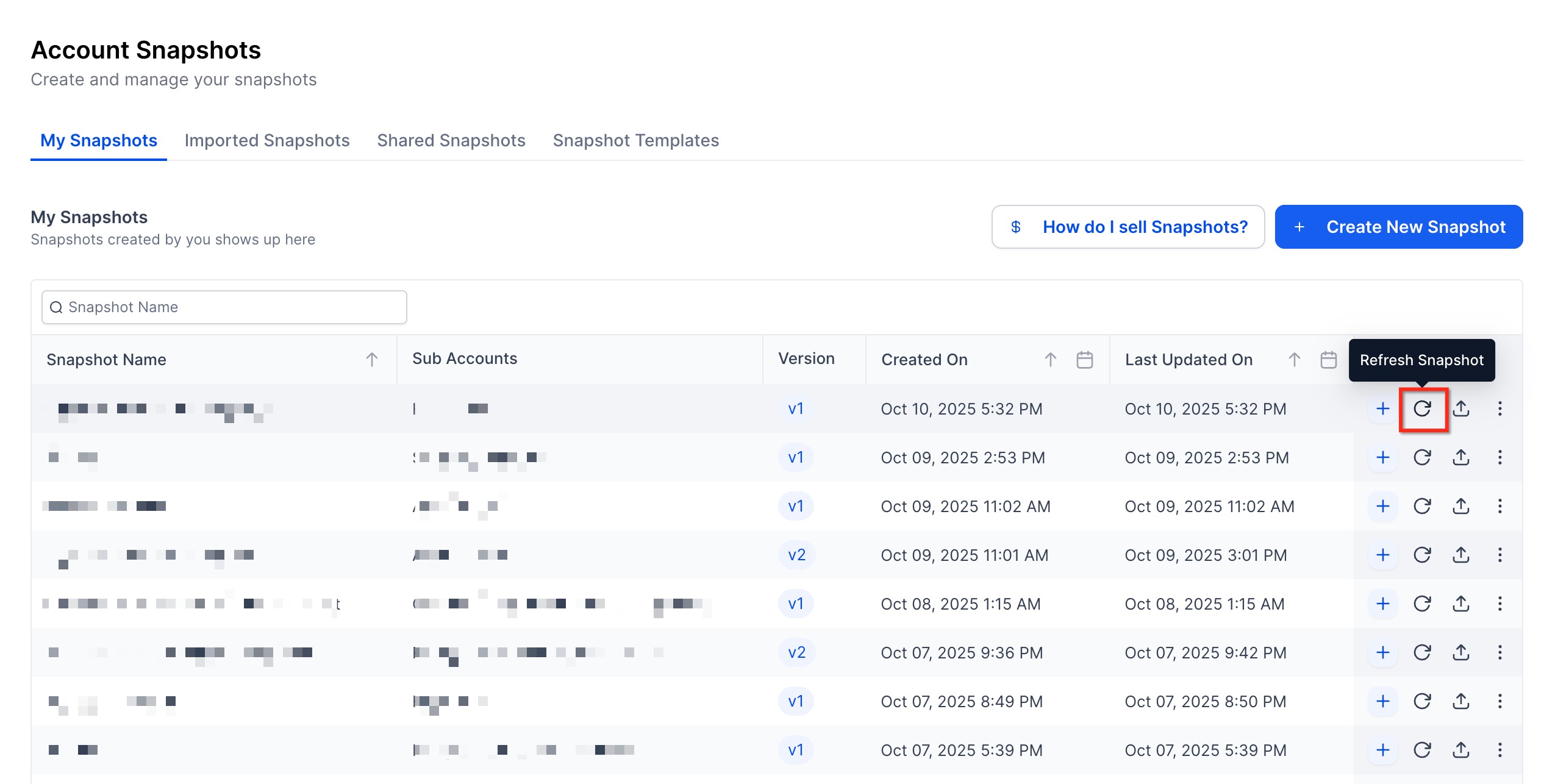
- Refresh – update an existing snapshot with the latest assets and settings from its source.
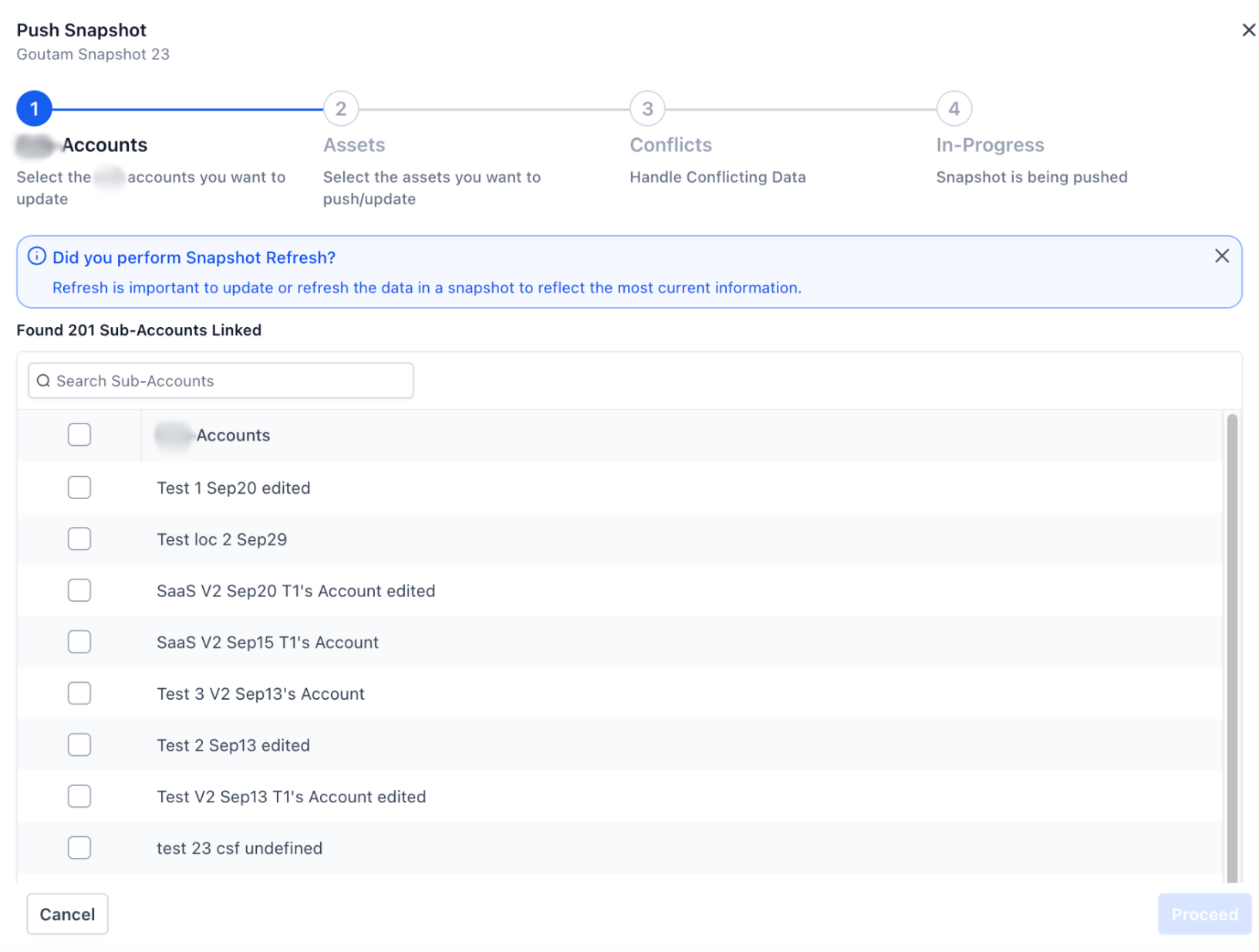
- Push – deploy a snapshot (or only selected assets) to one or many accounts.
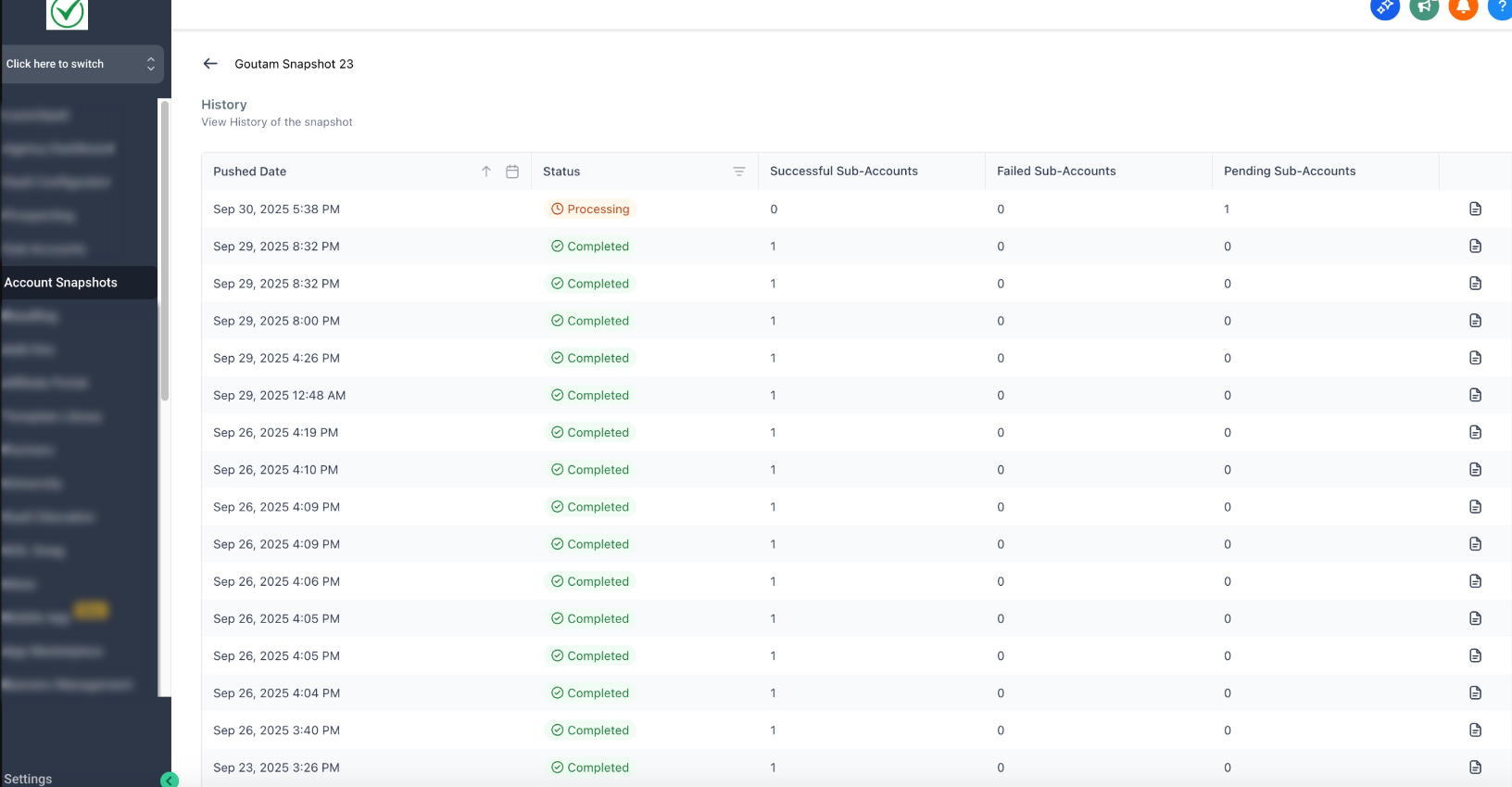
- History – open the full audit trail, including who created, refreshed, or pushed each snapshot.
- Settings – rename snapshots, edit included assets, or adjust push destinations.
Advanced Filtering, Sorting & Search
Enhanced data tools appear above every snapshot list:
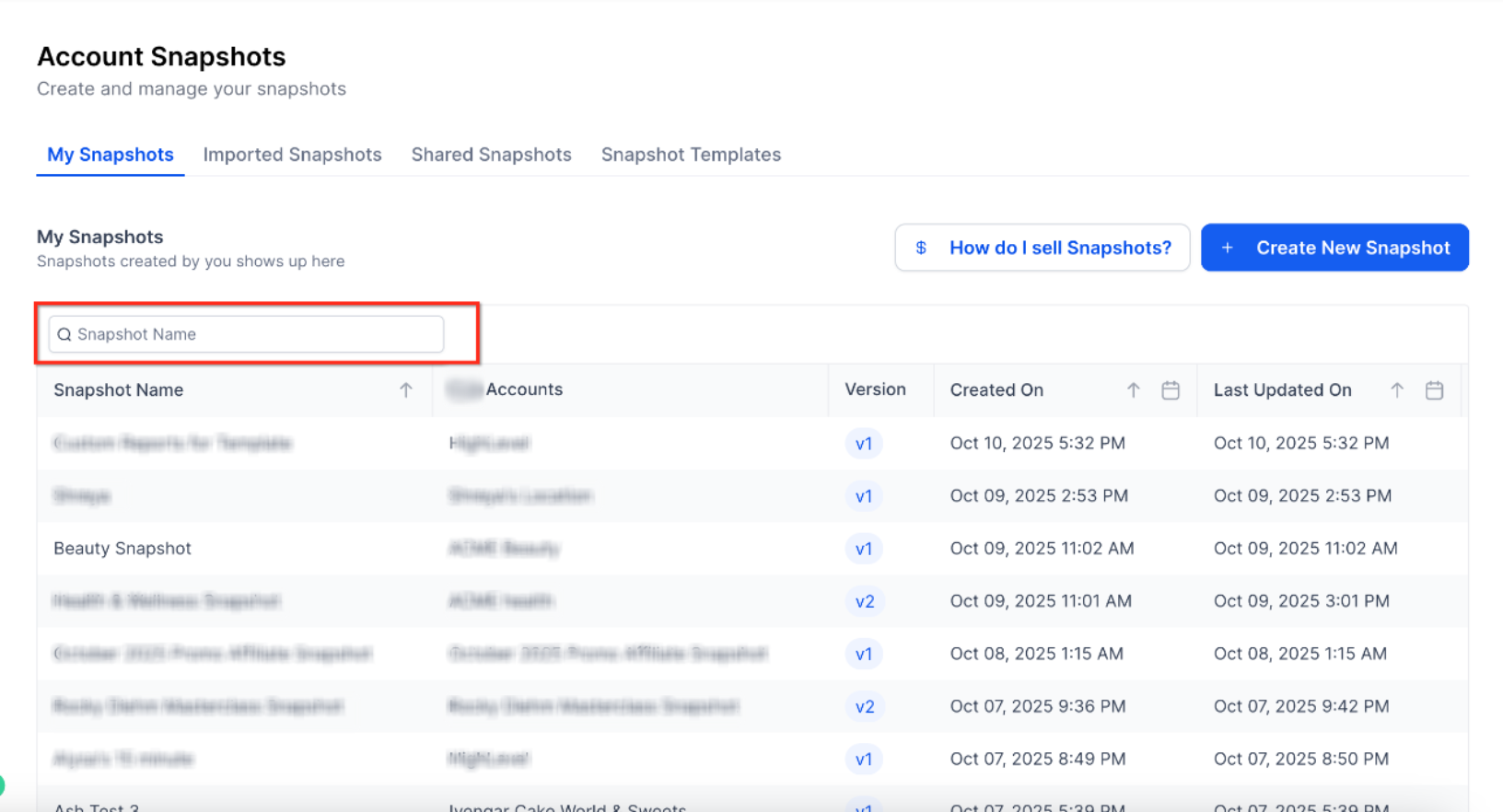
- Search bar—type any part of a snapshot name or ID for instant narrowing.
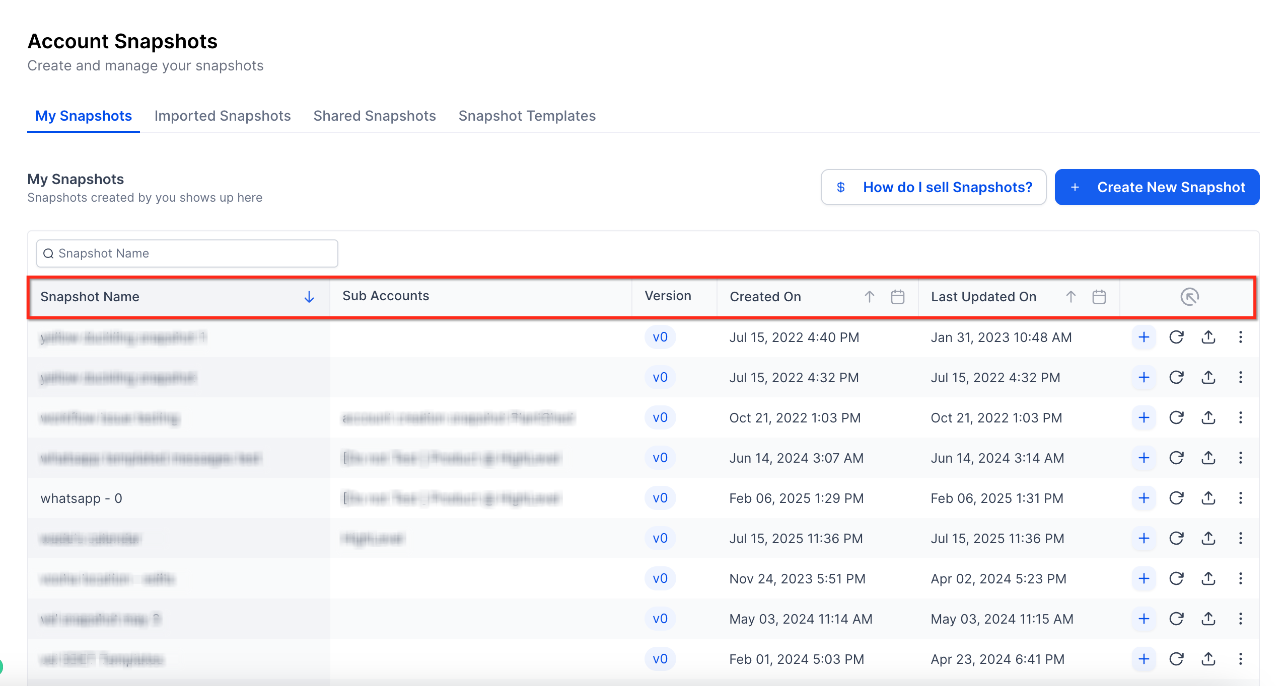
- Column sort—click a header (Name, Size, Last Updated, etc.) to reorder ascending/descending.
- Calendar picker—select absolute or relative date ranges (Today, Last 30 Days, Custom) to locate imports, shares, or pushes.
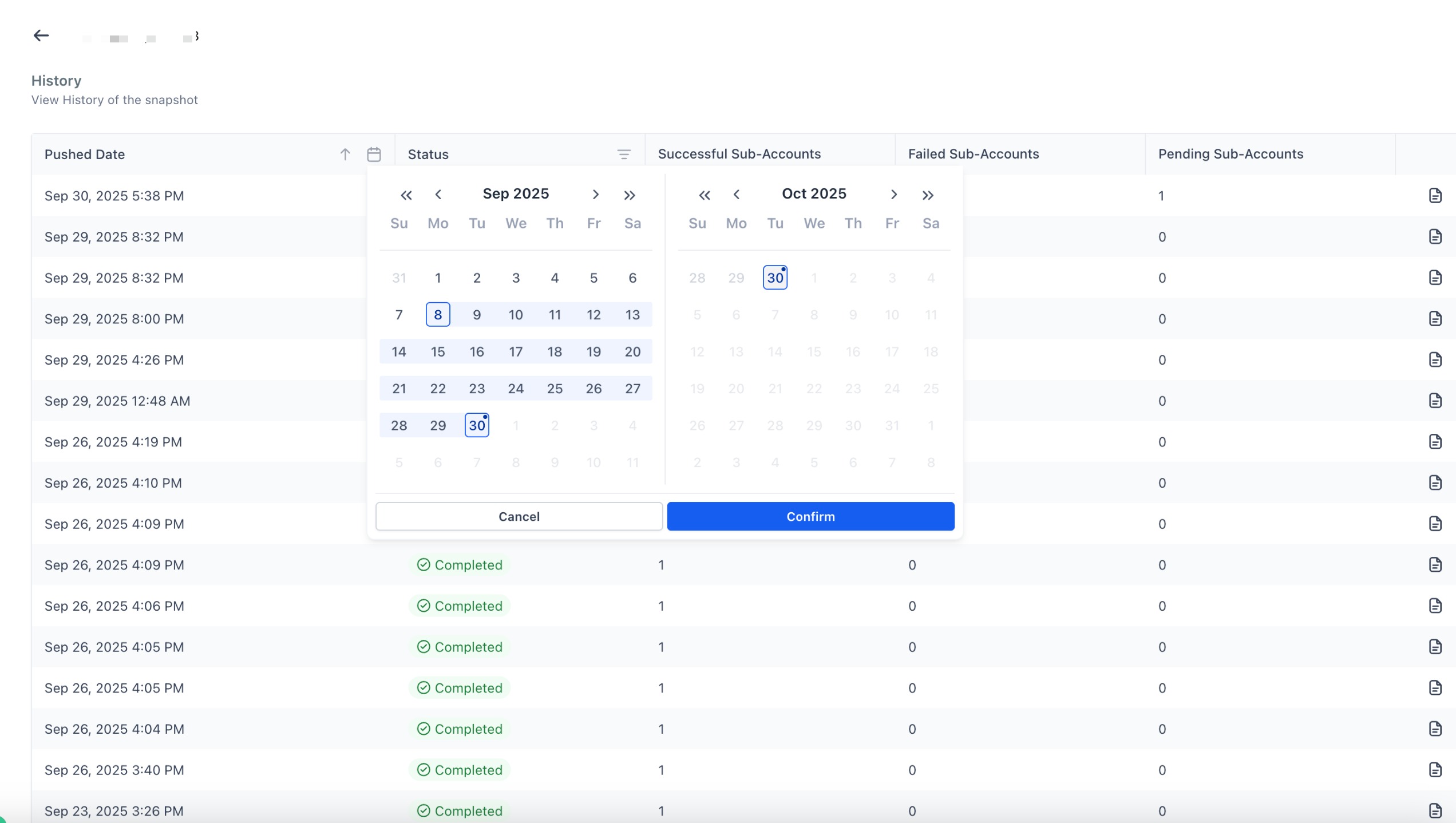
These controls can be combined, and the platform remembers your last filter set when you return.
Consistent Design System Elements
Labels, icons, buttons, and spacing now mirror other revamped platform areas (e.g., Invoices, Activity Section), making navigation second nature and reducing training time for new staff.
Frequently Asked Questions
Q: Does the new UI change what a snapshot includes?
No, asset coverage remains the same; only the interface and data tools changed.
Q: Can I revert to the classic UI?
The classic UI will be deprecated; during the transition, you may still find a “Legacy View” toggle, but we recommend migrating workflows now.
Q: Will my existing granular permissions still apply?
Yes, user permissions set under Settings ➜ Team continue to govern Create, Push, Refresh, etc.
Q: Does filtering affect other users?
Filters are per-user and session-specific; they do not change list views for teammates.
Q: Are there keyboard shortcuts?
Use ⌘/Ctrl + F to focus the search bar; ↑/↓ keys navigate list rows once focused.
Q: How many snapshots can I display at once?
The list is virtualized, so performance remains smooth even with thousands of items—no hard cap.
Q: Do date filters use my local timezone?
Yes, calendar filtering respects the timezone set in your user profile.
Was this article helpful?
That’s Great!
Thank you for your feedback
Sorry! We couldn't be helpful
Thank you for your feedback
Feedback sent
We appreciate your effort and will try to fix the article